
Building and Customizing Layouts in TradeStation TITAN X
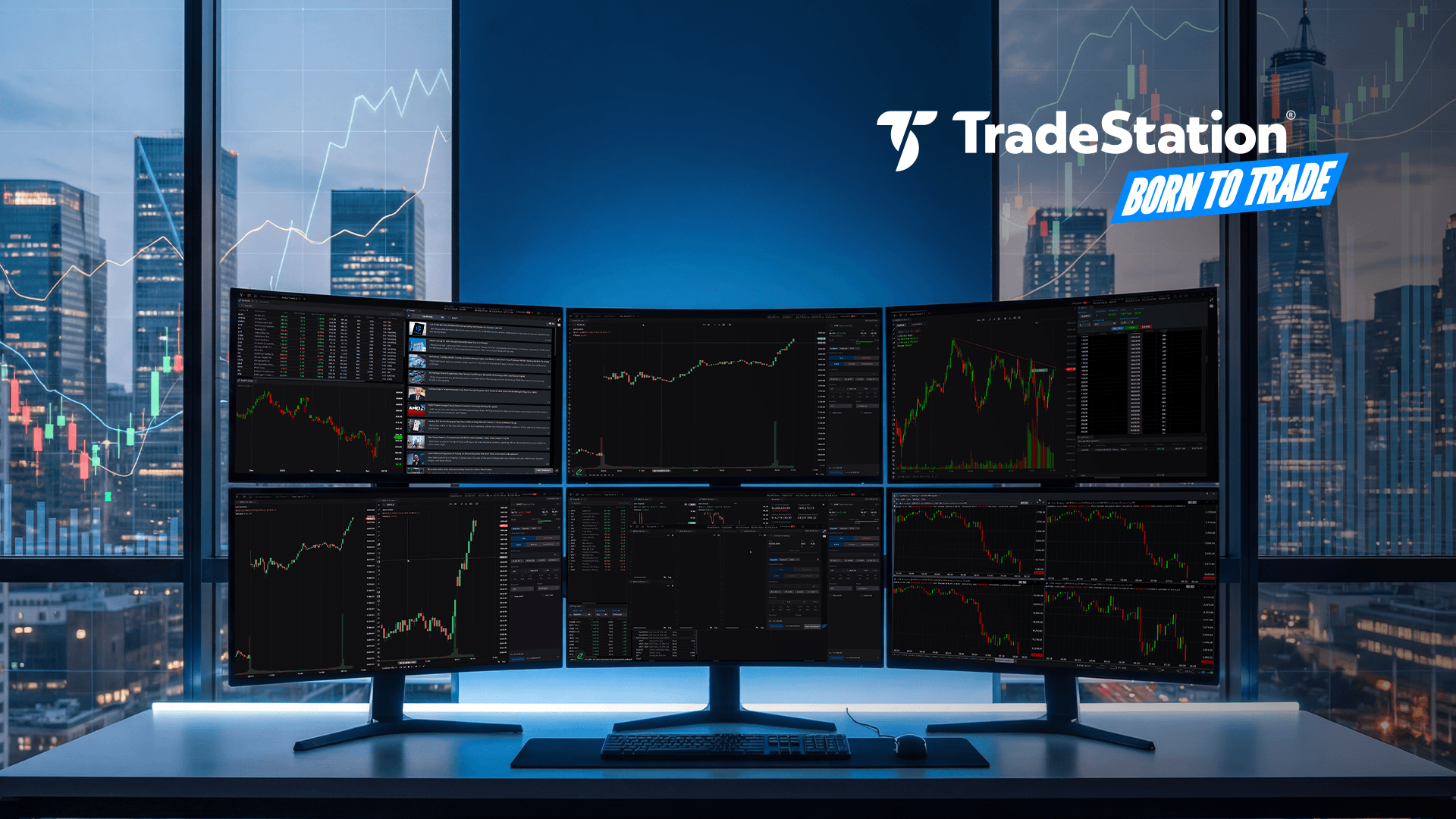
Build and Customize Layouts in TradeStation TITAN X
Designing a trading workspace that fits your style and strategy can make a meaningful difference in how efficiently you navigate the markets. TradeStation TITAN X is built to give you that flexibility — with layouts you can organize, personalize, and adapt to the way you trade.
Start with a Template or Build from Scratch
TITAN X gives you two paths to setting up your workspace. You can start from a pre-built layout to get up and running quickly, or create a custom layout from scratch — organized by strategy, symbol, or asset class — so your trading space is set up exactly the way you want it.
Each layout appears as its own tab, which you can label and rearrange to suit your workflow. If you’re working across multiple screens, you can also drag a layout tab to a separate monitor for a broader, more expansive view.
Adding and Arranging Tools
Inside any layout, you can add as many components as your workflow calls for, including charts, quote lists, order entry, positions panels, and more. To add a tool, click it from the Components menu, or drag it directly into your layout to place it exactly where you want it. As you move components around, shaded guide areas appear to show you where each tool will land — either as a new tab or alongside an existing component.
Linking Components for Faster Symbol Tracking
One of the more powerful workflow features in TITAN X is the ability to link components together. When components are linked, clicking a symbol in one — such as a watchlist — automatically updates every connected chart, Matrix, and Options component in your layout. This can help you monitor the symbols that matter most and potentially act more quickly, without having to manually update each panel.
Resizing and Refining Your Layout
Your layout doesn’t have to stay fixed once it’s set up. You can resize any panel by dragging its edges — shrinking components you use less often and expanding the ones you rely on most. Rearrange until the workspace feels right for your trading approach.
Layouts Save Automatically
Your layout is saved automatically as you work, so the next time you log in, every tab reopens exactly where you left it. There’s no need to rebuild your workspace each session — just log in and pick up right where you left off.
The flexible workspace tools in TradeStation TITAN X are designed to help you stay focused, work efficiently, and trade your way — as part of our ongoing commitment to delivering the ultimate trading experience.
ID5474981 P11828353226 D072026
Options trading is not suitable for all investors. Your TradeStation Securities’ account application to trade options will be considered and approved or disapproved based on all relevant factors, including your trading experience. See www.TradeStation.com/DisclosureOptions. Visit www.TradeStation.com/Pricing for full details on the costs and fees associated with options.
Margin trading involves risks, and it is important that you fully understand those risks before trading on margin. The Margin Disclosure Statement outlines many of those risks, including that you can lose more funds than you deposit in your margin account; your brokerage firm can force the sale of securities in your account; your brokerage firm can sell your securities without contacting you; and you are not entitled to an extension of time on a margin call. Review the Margin Disclosure Statement at www.TradeStation.com/DisclosureMargin.