Using MCP to Link a Brokerage Account to ChatGPT

TradeStation MCP lets users link AI models to their brokerage accounts. This article explains making the connection with ChatGPT, the most popular model in the U.S.
MCP stands for Model Context Protocol, an API standard that creates a secure two-way link between a large language model (LLM) and your trading account. This lets customers research, strategize and prepare trades in plain language while an OAuth-secured authentication connection provides security. Traders remain in control of every decision, with the ability to grant or deny access to different pieces of information and functionality.
(Visit this article for our earlier how-to on using TradeStation MCP with Claude Pro.)
Connecting ChatGPT
TradeStation MCP can connect to the brokerage accounts of eligible clients using OpenAI's ChatGPT Plus, Pro, Business, Enterprise or Edu. (Some may require authorization from your organization.)
Customers can get started by clicking the “Sign in” button at the top right of TradeStation.com. Once authenticated, they will enter HUB, the unified starting point for their accounts.
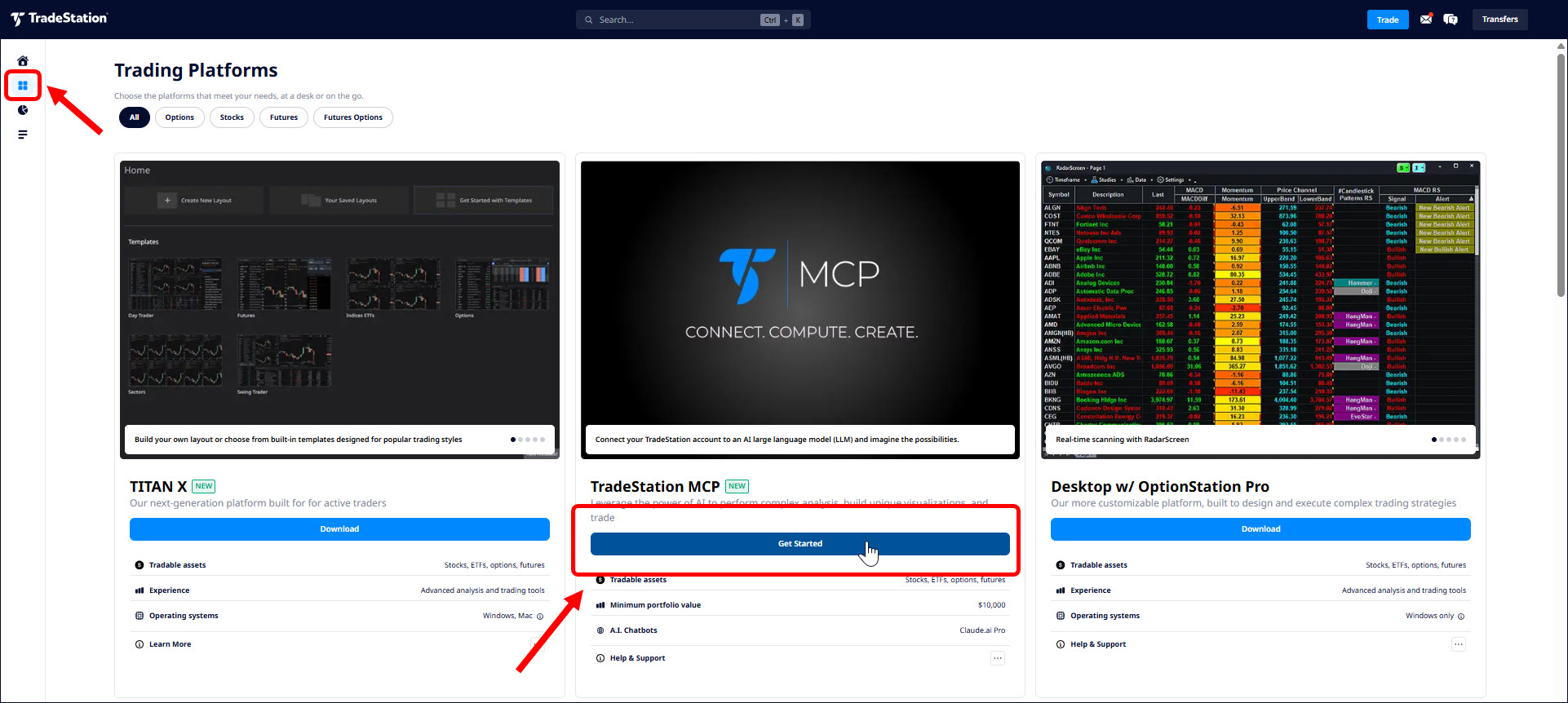
Clicking the Platform button on the left lists available tools. MCP will appear for customers with qualifying accounts. Clicking “Get Started” begins the process.
Once enabled, traders can follow these steps on ChatGPT:- Open ChatGPT → ⚙️ Settings (Look for the button with your login name on the lower left)
- Choose Plugins. Scroll down to Developer mode and activate it using the slide button.
- Return to Settings → Plugins → Browse Plugins
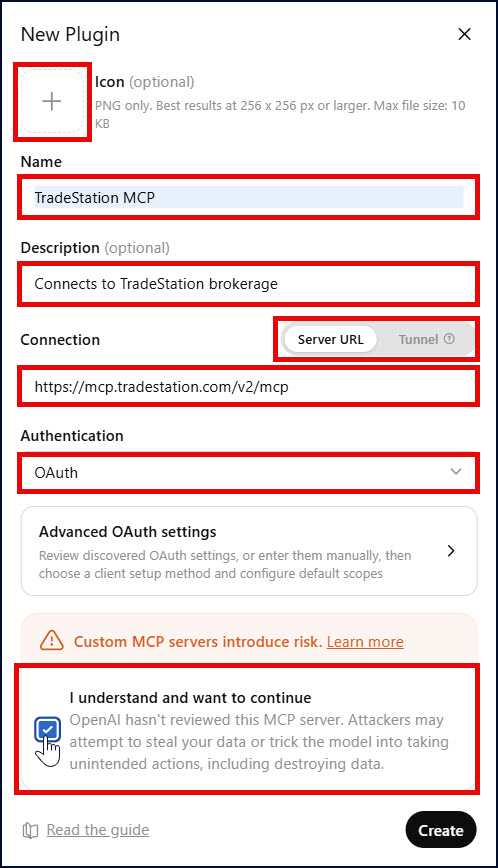
- Click the + button near the top to create a new plugin
- Add TradeStation "T" logo (optional), which will help you see the link once established.
- Provide a name and description.
- In Connection, choose Server URL (not Tunnel).
- Provide this URL: https://mcp.tradestation.com/v2/mcp
- Select OAuth for authentication
- Check the consent box in the warning alert if you agree to the potential risks associated with remote connections
- Save the plugin
Using the Plugin
Once the plugin is saved, users can follow these steps to activate it:
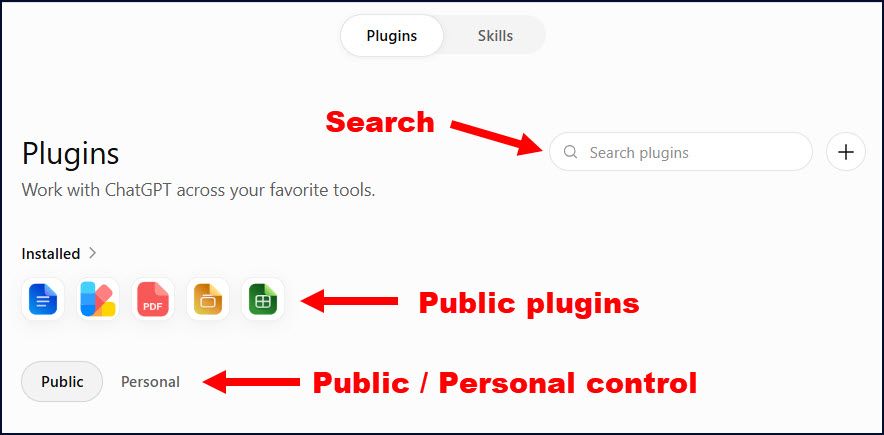
- Return to plugins
- Public plugins appear by default. Users can click on Personal to switch to their own tools.
- The TradeStation MCP connection should appear once Personal is selected.
- Alternately, customers can use the search box.
- Activating or installing the plugin will activate a TradeStation authentication dialog where customers can enter their credentials.
- Once connected, open a new chat.
The model should now have access to your account information and TradeStation's market data. You can ask it questions like:
- "I'm bullish on $AAPL. Please suggest an options strategy for a 2-3 month rally."
- "I think the stock market is headed lower by Labor Day. Suggest a strategy to profit from such a move."
- "I have significant gains in $MU and $SNDK. How can I protect against a 2-3 month pullback?"
ChatGPT doesn't just help strategize. Thanks to TradeStation MCP, the AI can see account balances/positions and place orders. This makes it a potentially powerful assistant.
See our earlier article on using TradeStation MCP with Anthropic's Claude for more information on using AI models in your trading.
Options trading is not suitable for all investors. Your TradeStation Securities’ account application to trade options will be considered and approved or disapproved based on all relevant factors, including your trading experience.
See www.TradeStation.com/DisclosureOptions. Visit www.TradeStation.com/Pricing for full details on the costs and fees associated with options.
Margin trading involves risks, and it is important that you fully understand those risks before trading on margin. The Margin Disclosure Statement outlines many of those risks, including that you can lose more funds than you deposit in your margin account; your brokerage firm can force the sale of securities in your account; your brokerage firm can sell your securities without contacting you; and you are not entitled to an extension of time on a margin call. Review the Margin Disclosure Statement at www.TradeStation.com/DisclosureMargin.
This content is for educational and informational purposes only. Any symbols, financial instruments, or trading strategies discussed are for demonstration purposes only and are not research or recommendations. TradeStation companies do not provide legal, tax, or investment advice.
Past performance, whether actual or indicated by historical tests of strategies, is no guarantee of future performance or success. There is a possibility that you may sustain a loss equal to or greater than your entire investment regardless of which asset class you trade (equities, options or futures); therefore, you should not invest or risk money that you cannot afford to lose. Before trading any asset class, first read the relevant risk disclosure statements on www.TradeStation.com/Important-Information/.
Securities and futures trading is offered to self-directed customers by TradeStation Securities, Inc., a broker-dealer registered with the Securities and Exchange Commission and a futures commission merchant licensed with the Commodity Futures Trading Commission. TradeStation Securities is a member of the Financial Industry Regulatory Authority, the National Futures Association, and a number of exchanges.
TradeStation Securities, Inc. and TradeStation Technologies, Inc. are each wholly-owned subsidiaries of TradeStation Group, Inc., both operating, and providing products and services, under the TradeStation brand and trademark. When applying for, or purchasing, accounts, subscriptions, products, and services, it is important that you know which company you will be dealing with. Visit www.TradeStation.com/DisclosureTSCompanies for further important information explaining what this means.
.jpg&w=3840&q=75)