TradeStation recently added key trading functionality to HUB, the starting point for customers on our site. This article will explain some important updates.
HUB trading is a unified starting point for new and existing customers. The view is clean and simple, but with powerful functionality. It also runs entirely from a browser, helping traders place orders without downloading and installing software. This is the kind of ease and convenience natural born traders require and deserve.
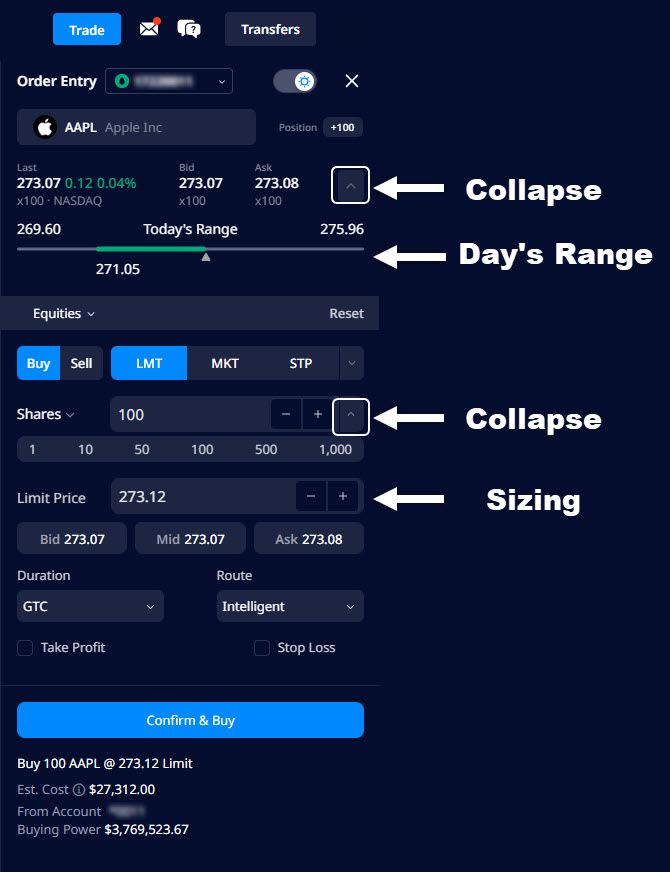
HUB’s Order Entry ticket for equities.
HUB is available by clicking the “Sign in” button on tradestation.com. Once authenticated, users can click the portfolio button on the far left. They will immediately see their holdings and can navigate with buttons along the top like Positions, Orders and Trade.
Easy Trade Button
HUB’s Trade button is the first key feature. It’s near the top right next to the help and messages icons. Clicking this button opens a powerful trading ticket that can place orders on stocks, options or futures.
Users can begin by entering an equity symbol like AAPL. An intuitive interface populates below for trading both shares and options.
Users can select Buy and Sell, followed by order type like Limit (LMT), Market (MKT) and Stop (STP). Switching from buy to sell changes the color from blue to red, helping traders confirm direction is correct.
The box to the right of Shares on the next line controls the size of the order. Aside from inputting a number with their keyboards, users can adjust the size with the “-” and “+” buttons or by clicking on the numbers ranging from 1 to 1,000.
The Order Entry tool also has two collapsible sections:
- The day’s price range can be viewed by clicking the caret to the right of the quote showing Last price, Bid and Ask.
- The sizing row with easy numbers can be toggled on and off with the caret to the right of the sizing bar.
Trading Options
HUB makes it easy to trade options on the stock you have entered. Clicking “Equities” immediately above the Buy and Sell buttons opens a menu of option strategies like Call, Put, Iron Condor and Call Vertical.
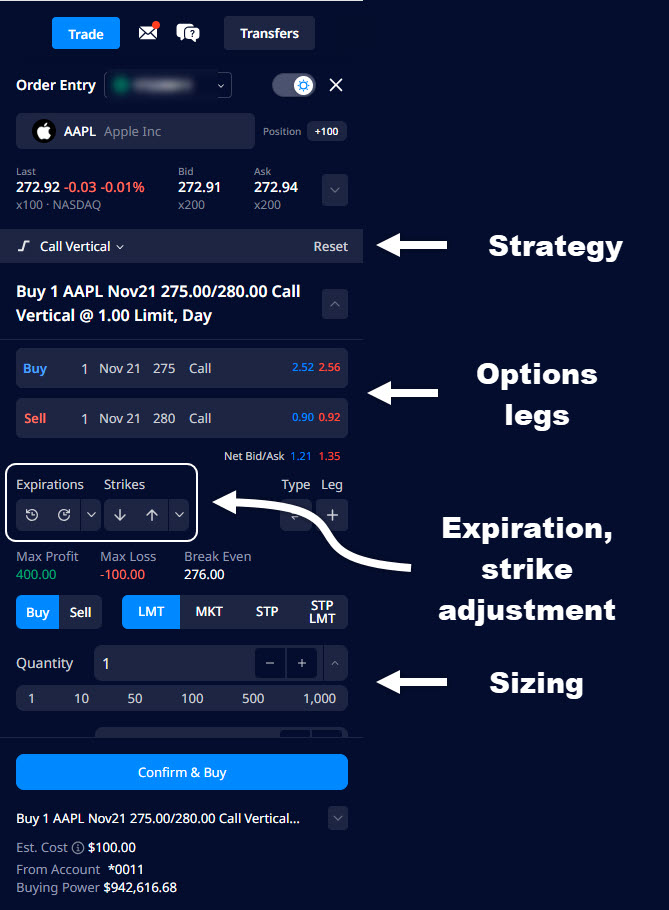
HUB’s Order Entry ticket for options.
One or more contracts will appear once an options strategy is chosen. Traders can quickly adjust key variables by clicking on different parts of the line. They can:
- Toggle between Buy and Sell
- Change the number of contracts
- Change the expirations
- Change the strike prices
The ticket updates as you make changes. For example, you might start with a simple vertical spread. That entails buying and selling two options with the same expiration date. If details on a single leg are changed, such as the expiration or number of contracts, HUB automatically updates the strategy type to diagonal, calendar or another.
There are also quick adjustment buttons to easily change the expiration date or strike prices. Clicking these can change the legs of a spread in unison, incrementing expiration dates or strikes with a single click.
Note: Users can quickly reset their order ticket with the Reset button to the right of the strategy type. This clears changes like added legs and modified stop/limit prices.
Managing Positions
Customers can view and manage holdings by clicking the “Positions” button at the top of HUB when they are in Portfolio view. Several tools are available for easily sorting and managing assets in your portfolio.
All positions are initially shown. Here are some points for sorting and viewing:
- Positions can be sorted by clicking the Symbol – Instrument title header.
- Stocks and options are grouped by the instrument or underlying symbol, like AAPL or NVDA.
- Users can screen for symbols with the “All Symbols” button at the top right
- The Filter button lets users filter by asset class like Stocks & ETFs, Options, Futures and Futures Options.
Here are some key ways you can manage positions from the main view:
- Left clicking on a position opens the Order Entry Ticket with default values set to close the position.
- Right clicking opens a menu with additional options like Add, Close at Market or Reverse.
- Right clicking on a call or put option offers the additional choice of rolling the contract.
- All the transactions you might chose will activate the Order Entry ticket on the right side, where details can be adjusted.
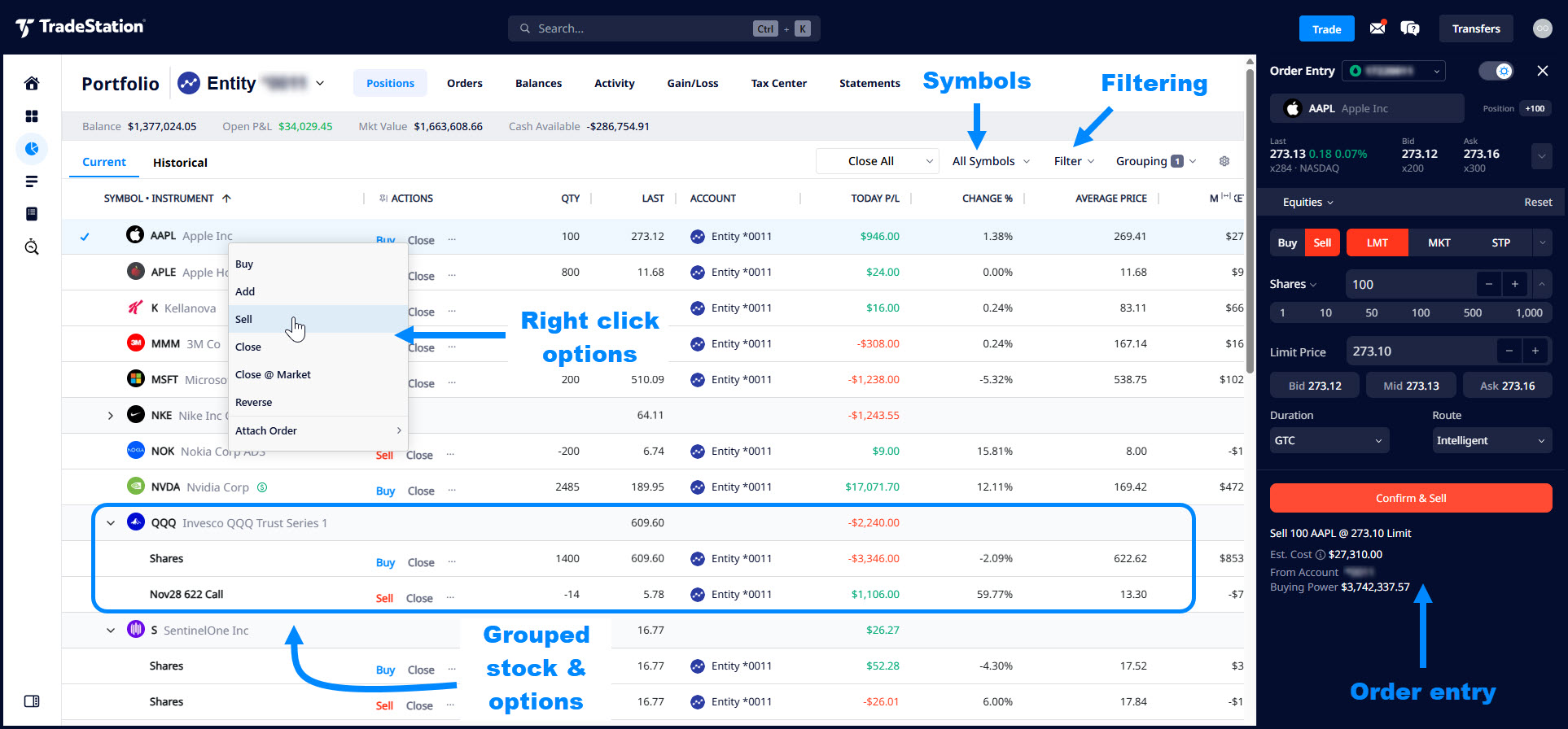
HUB’s Position page with key features marked.
Managing Orders
Traders can also view and manage orders with the Orders button at the top of HUB when they are in the portfolio view.
Right clicking on order rows activates a dropdown letting users quickly buy and sell the symbol in question.
They can also create an opposite order, populating a sell for a buy and vice versa.
Holding down the control key lets multiple orders be selected. Users can then right click to cancel or convert to market orders.
Buttons at the top right manage which orders are shown: All, Open, Filled and Canceled.
Controls at the top right allow filtering. The “Today” button opens a menu to increase the time frame. “All Symbols” lets users screen for orders on individual symbols.
In conclusion, HUB is a clean and simple interface with surprising functionality. Customers can enter orders, manage positions and construct complex options strategies in a single unified interface. Trading well is difficult enough, but getting started is now easier than ever thanks to HUB.
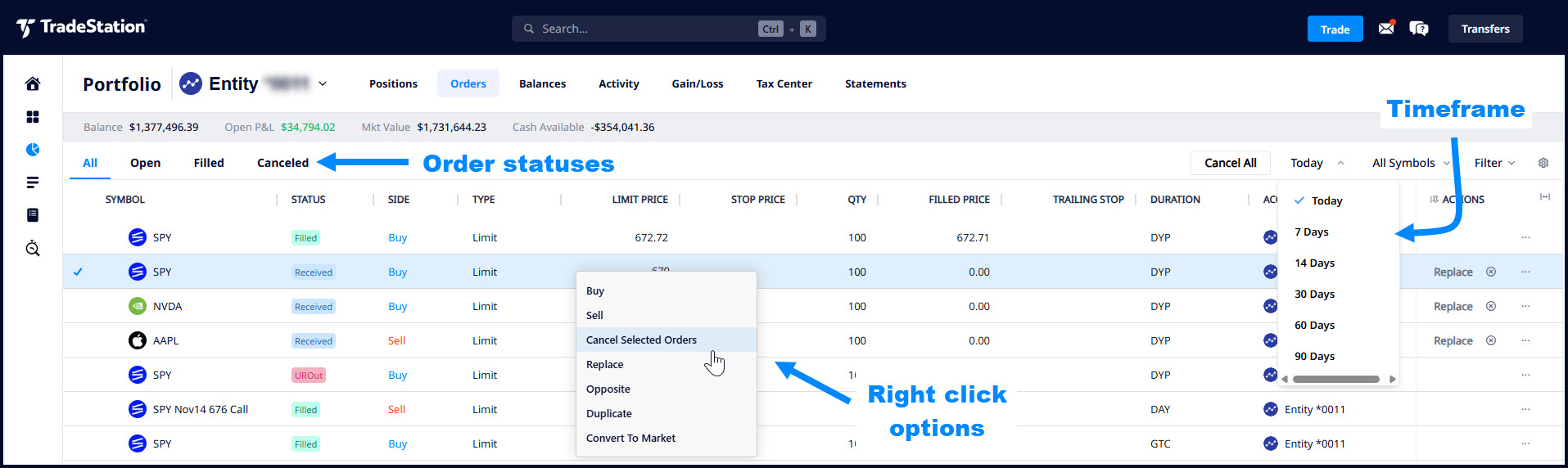
HUB trading orders view with key functionality marked.
Exchange Traded Funds (“ETFs”) are subject to management fees and other expenses. Before making investment decisions, investors should carefully read information found in the prospectus or summary prospectus, if available, including investment objectives, risks, charges, and expenses. Click here to find the prospectus.
Futures trading is not suitable for all investors. To obtain a copy of the futures risk disclosure statement visit www.TradeStation.com/DisclosureFutures.
Options trading is not suitable for all investors. Your TradeStation Securities’ account application to trade options will be considered and approved or disapproved based on all relevant factors, including your trading experience. See www.TradeStation.com/DisclosureOptions. Visit www.TradeStation.com/Pricing for full details on the costs and fees associated with options.
Margin trading involves risks, and it is important that you fully understand those risks before trading on margin. The Margin Disclosure Statement outlines many of those risks, including that you can lose more funds than you deposit in your margin account; your brokerage firm can force the sale of securities in your account; your brokerage firm can sell your securities without contacting you; and you are not entitled to an extension of time on a margin call. Review the Margin Disclosure Statement at www.TradeStation.com/DisclosureMargin.